
We’re thrilled to announce a brand-new feature: Meta Pixel Integration is now available on Mainstack!
With this update, you can easily add Meta Pixel (formerly Facebook Pixel) to your Mainstack page to track conversions, measure ad performance, and optimize your marketing campaigns across Facebook and Instagram.
If you use Mainstack to promote your products, digital services, or affiliate offers, this new feature helps you understand your audience better and turn every click into a conversion.
What Is Meta Pixel Integration and Why It Matters
The Meta Pixel is a powerful analytics tool from Meta (formerly Facebook) that helps you understand what happens after people visit your page. When you connect it to your Mainstack Storefront or Hosted Course, you unlock a new level of insight into how your visitors engage, click, and convert.
Here’s what it helps you do:
- Track conversions that matter: See exactly how many people click your links, sign up for your course, or complete a purchase on your Mainstack page.
- Measure your ad results: Know which Facebook or Instagram ads are actually driving traffic and sales, not just impressions.
- Retarget your visitors: Reconnect with people who viewed your page but didn’t buy or sign up and bring them back with the right ad.
- Optimize ad delivery automatically: Meta’s algorithm uses your pixel data to find more people like your best customers, so your ads convert better over time.
With Meta Pixel integration on Mainstack, you can finally see the full picture without using multiple tools or complicated setups. It’s everything you need to run smarter ads, understand your audience, and grow faster, all in one place.
How to Set Up Meta Pixel Integration on Mainstack (Step-by-Step Guide)
Setting up Meta Pixel on Mainstack takes just a few minutes. Here’s how to do it:
Step 1: Find your Meta Pixel ID
- Go to Meta Business Suite or Meta Business Manager: business.facebook.com
- Open Events Manager (left sidebar → Data Sources → Pixels).
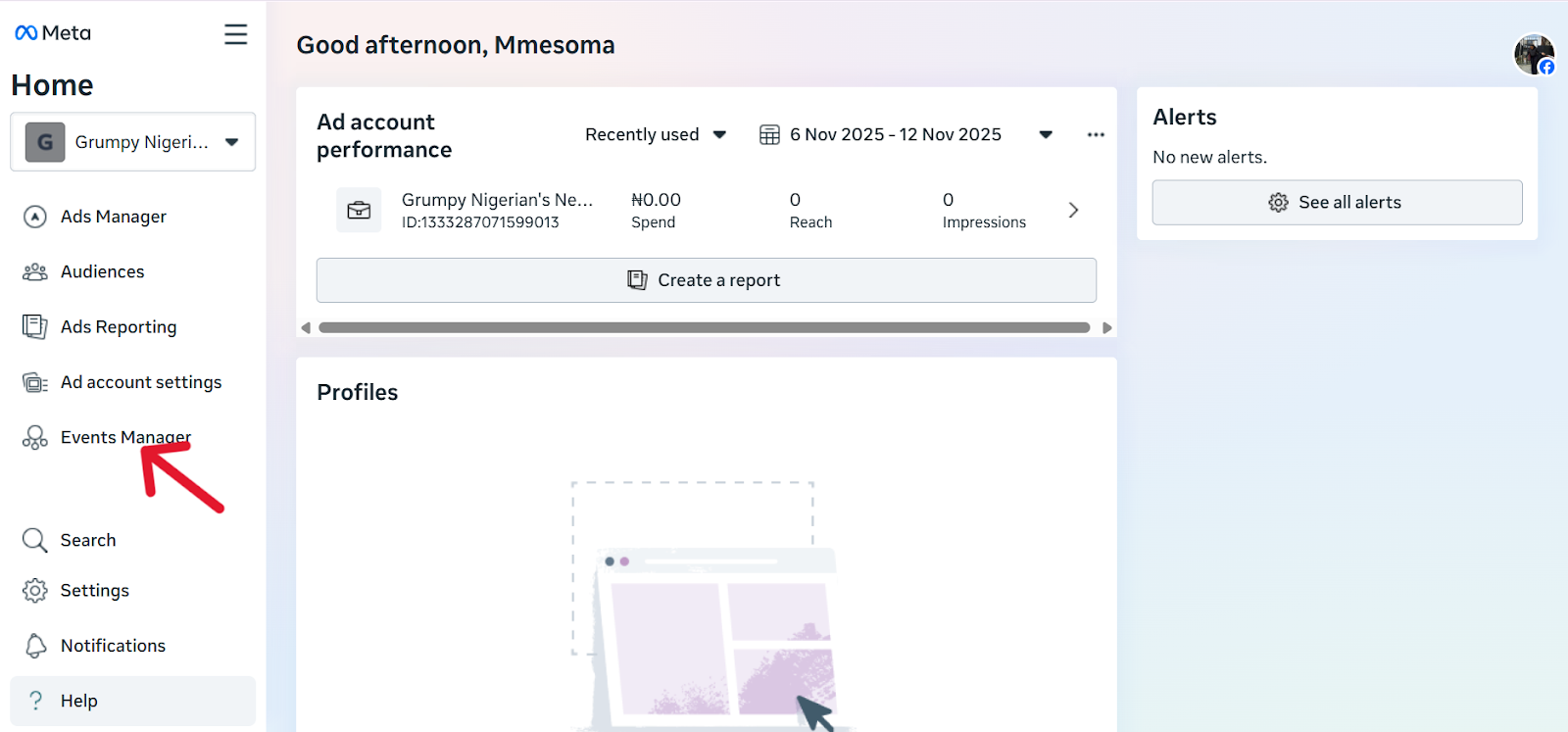
- Select the Pixel you want to use. The Pixel ID is displayed near the Pixel name (the long number).
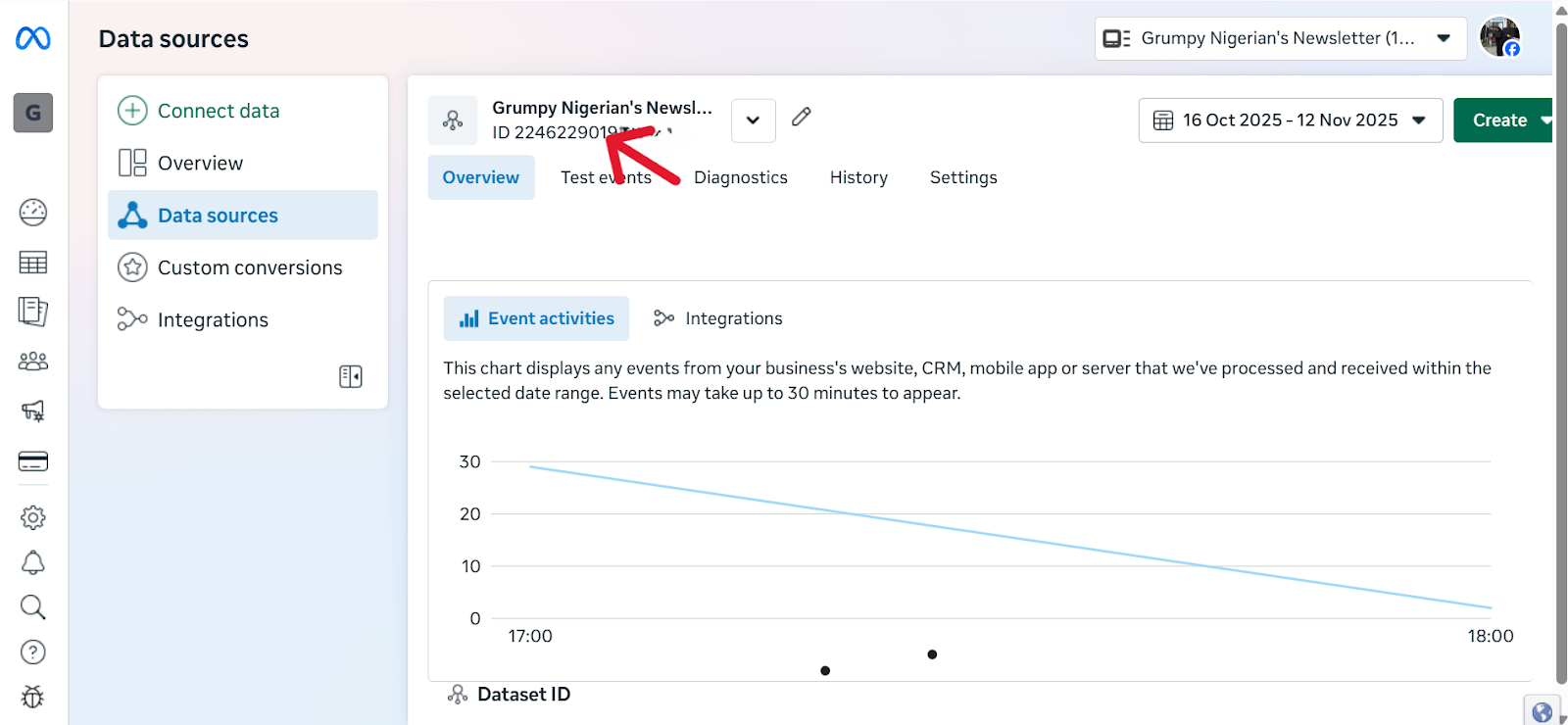
- Copy that Pixel ID and paste it into Mainstack.
💡 Pro tip: If you don’t have a pixel yet, create one in Events Manager → Add Data Source → Web → Meta Pixel and follow the prompts. Then return here to copy the Pixel ID.
Step 2: Connect Meta Pixel inside Mainstack
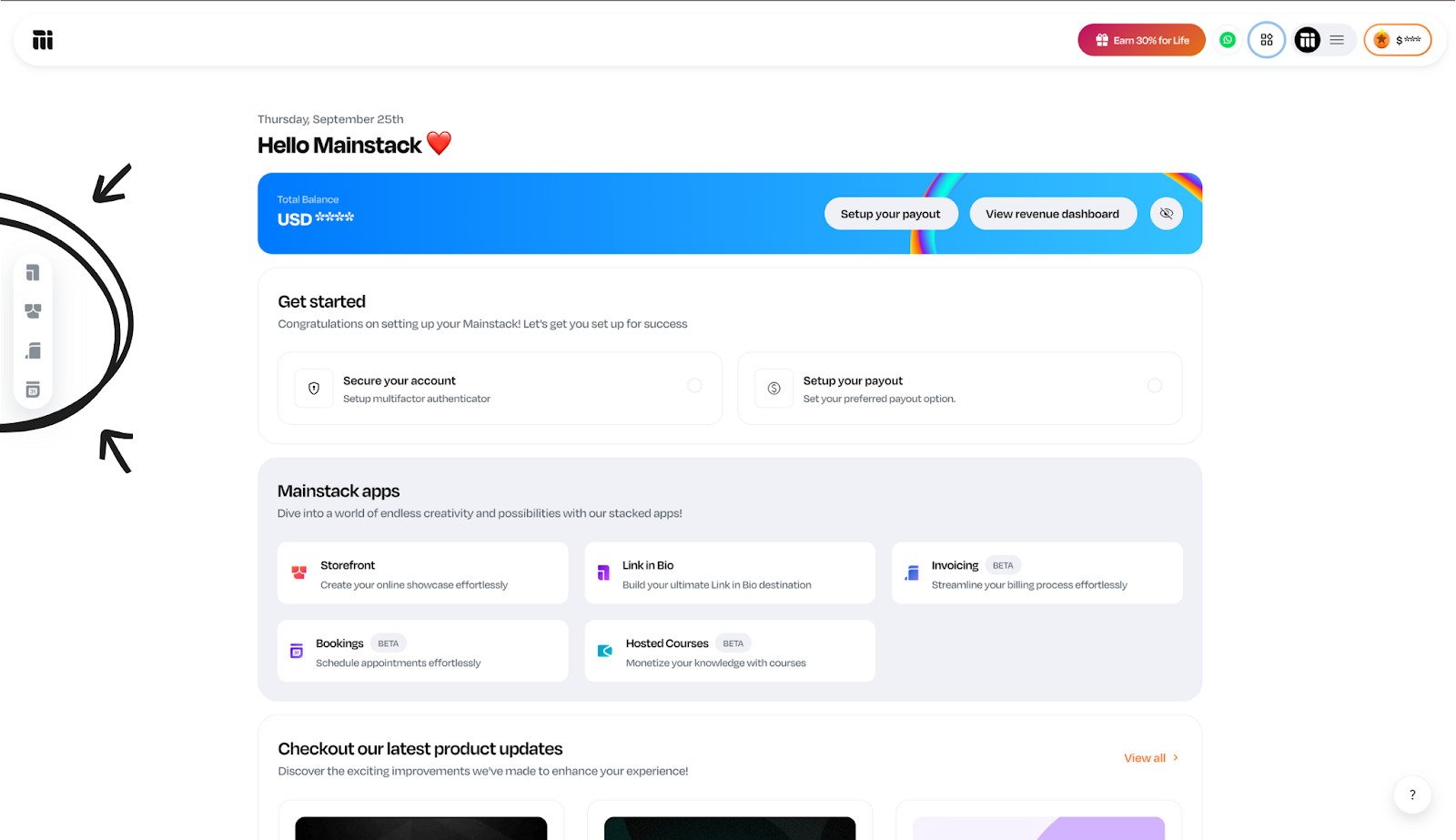
- Login to your Mainstack dashboard.
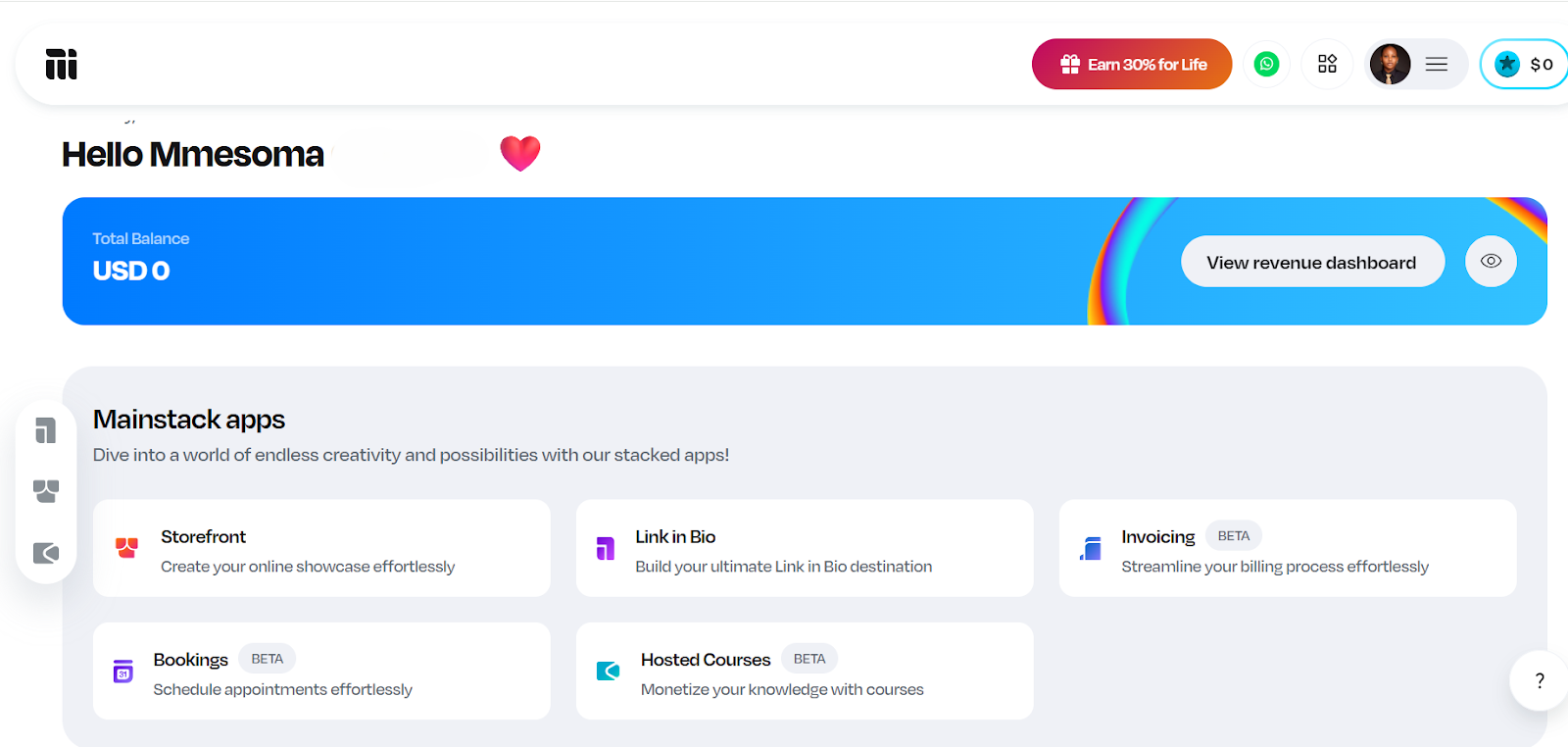
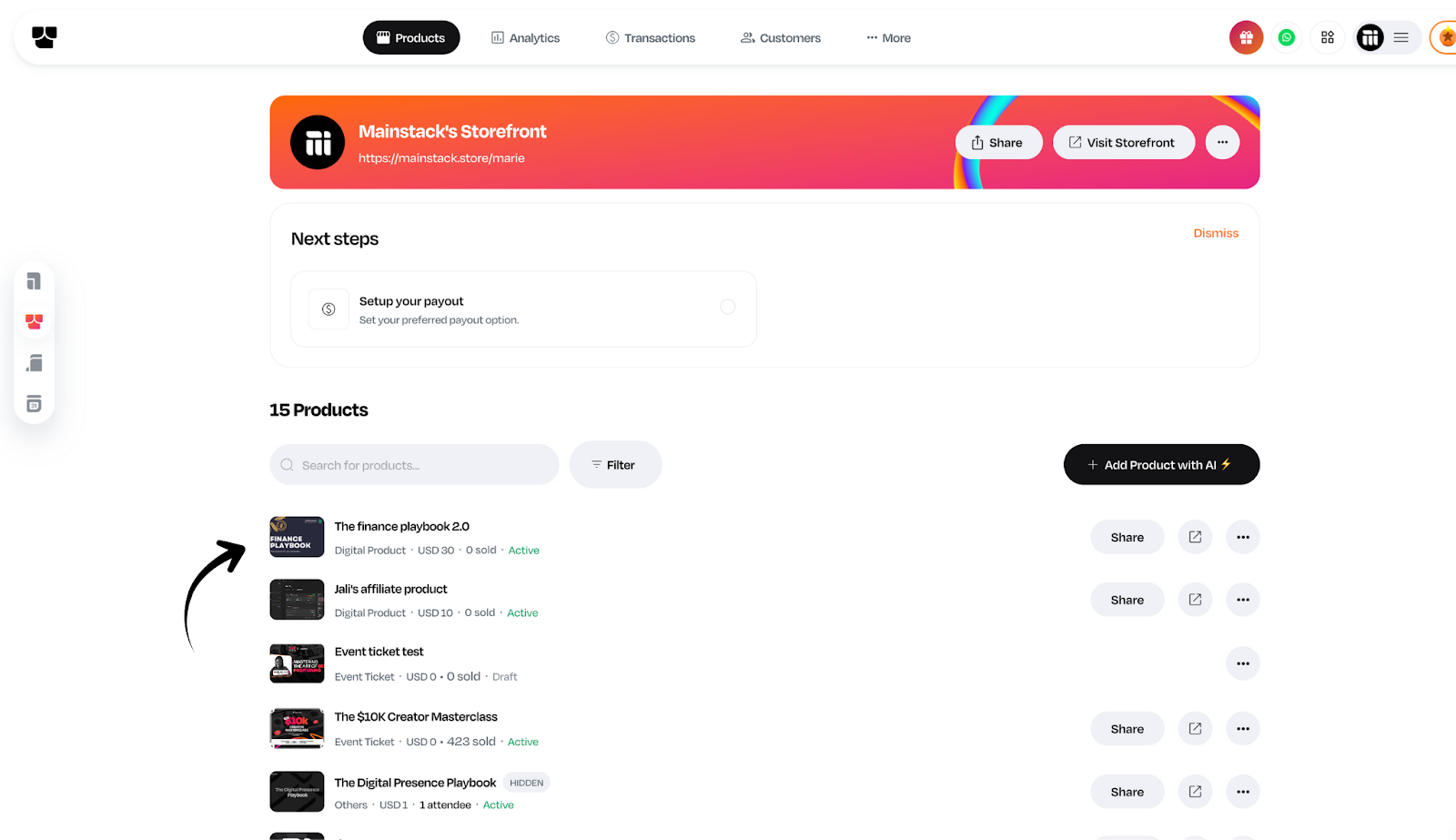
- Open the Storefront or Hosted Courses page you want to track.
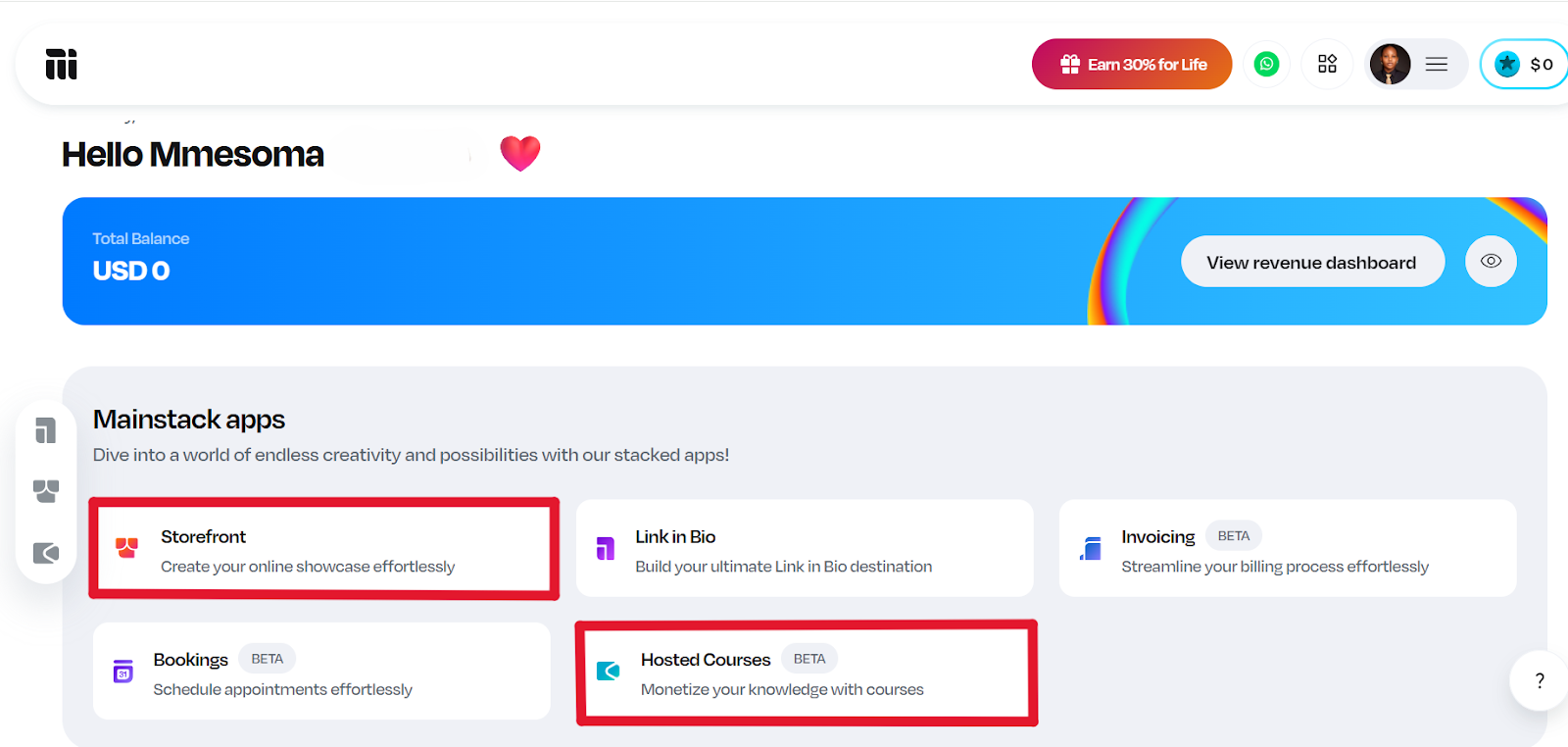
💡 Note: If you have multiple pages, repeat this setup for each page or connect at the account-level.
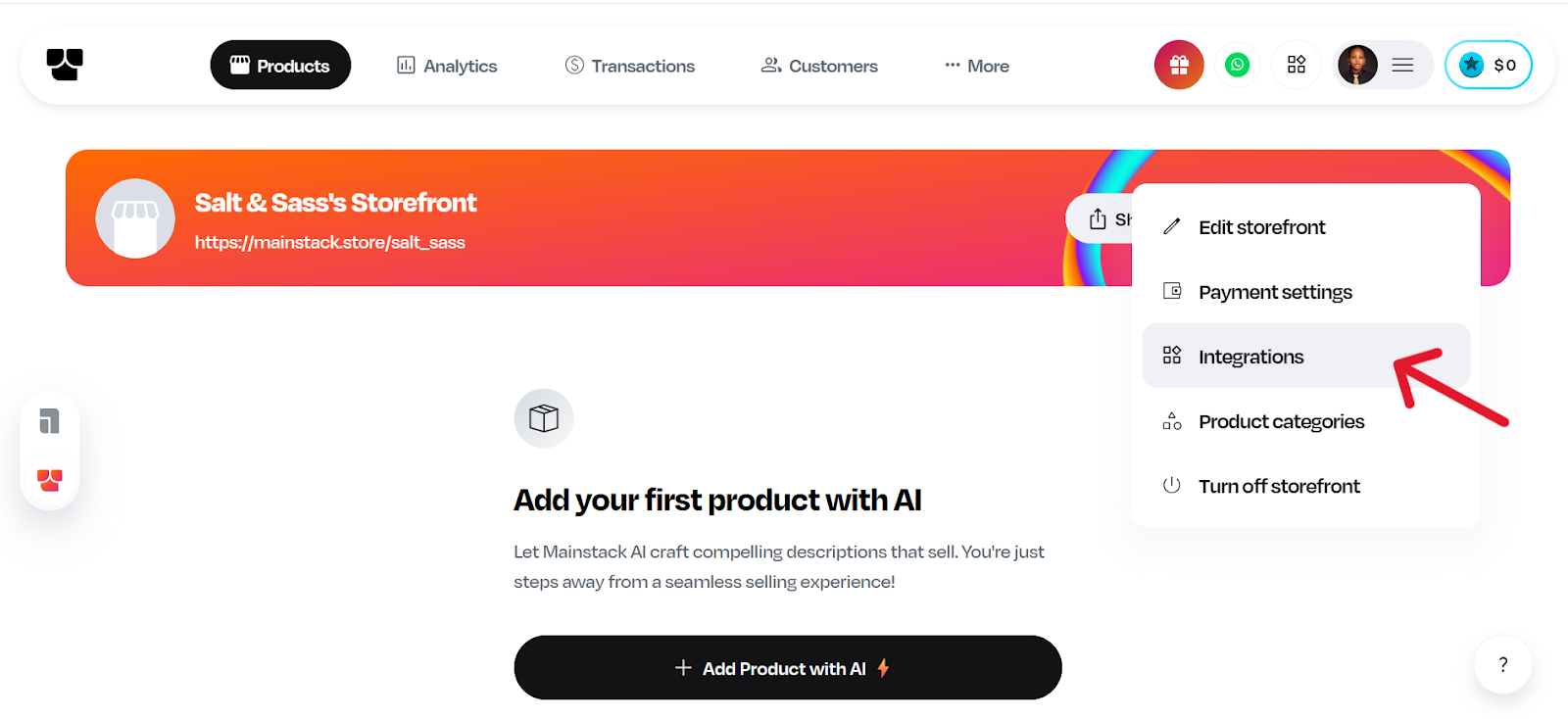
- Next, click the three-dot menu (⋮) in the top-right corner of that page’s editor.
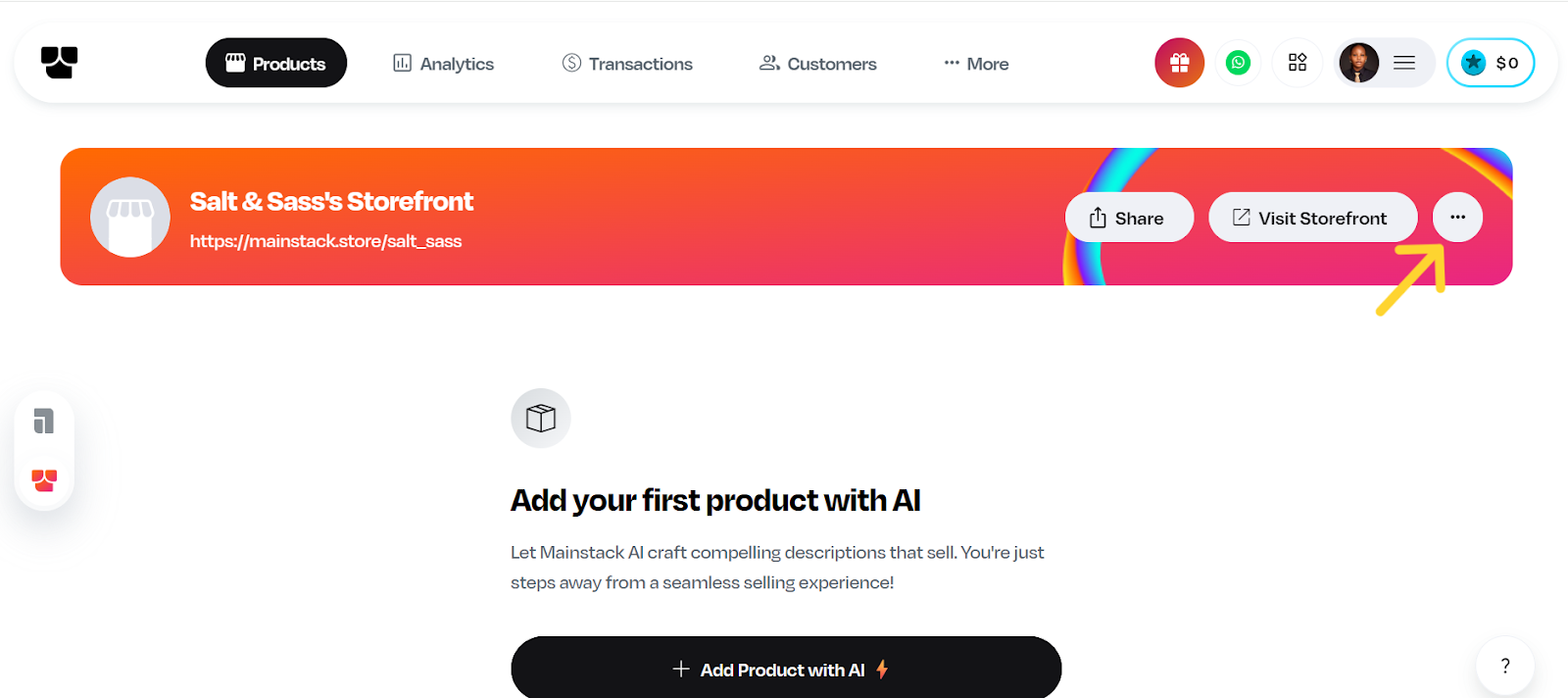
- Select Integrations from the dropdown.
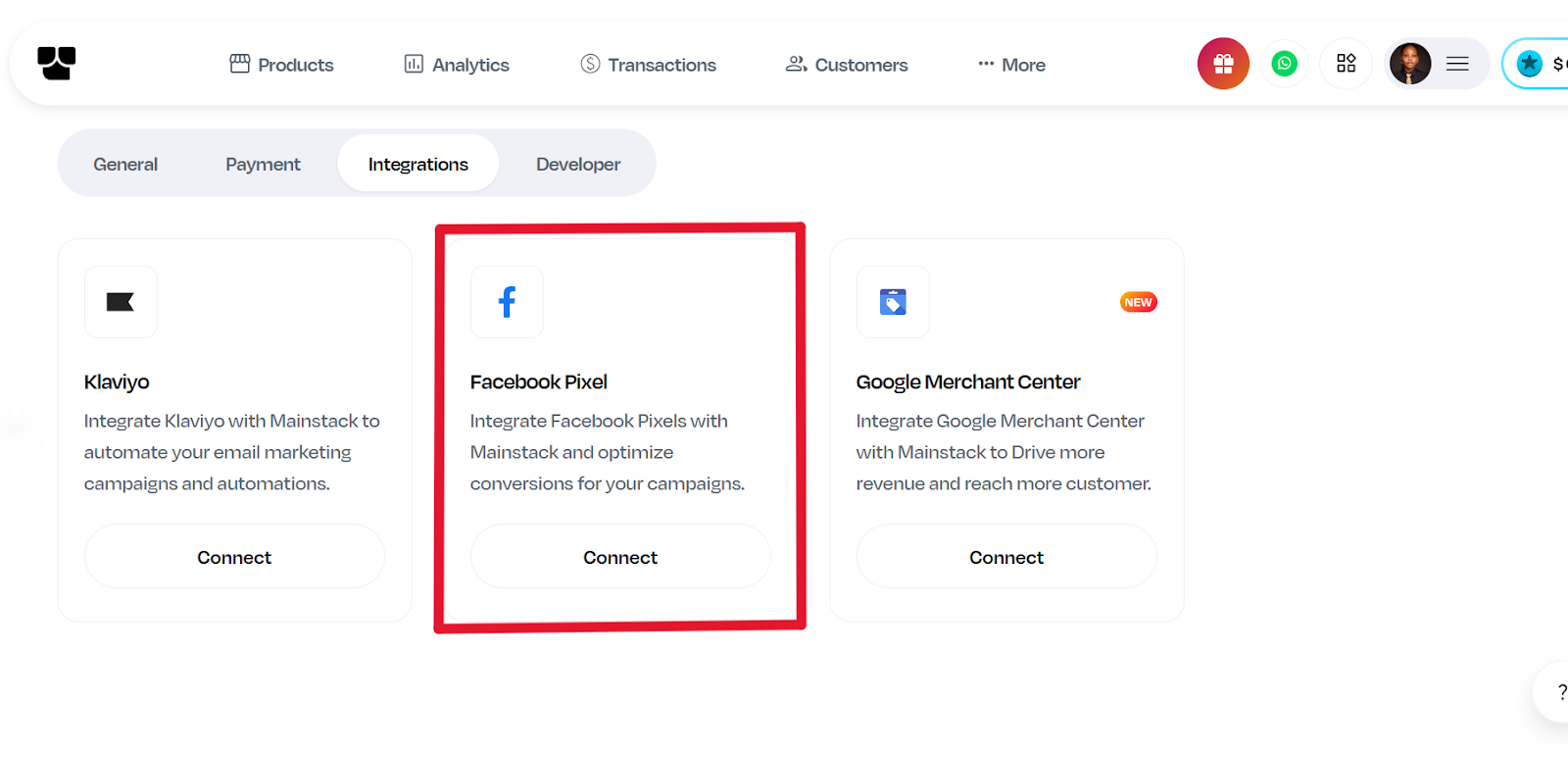
- Look for Facebook Pixel in the list and click Connect.
- Paste your Meta Pixel ID into the Pixel ID field.
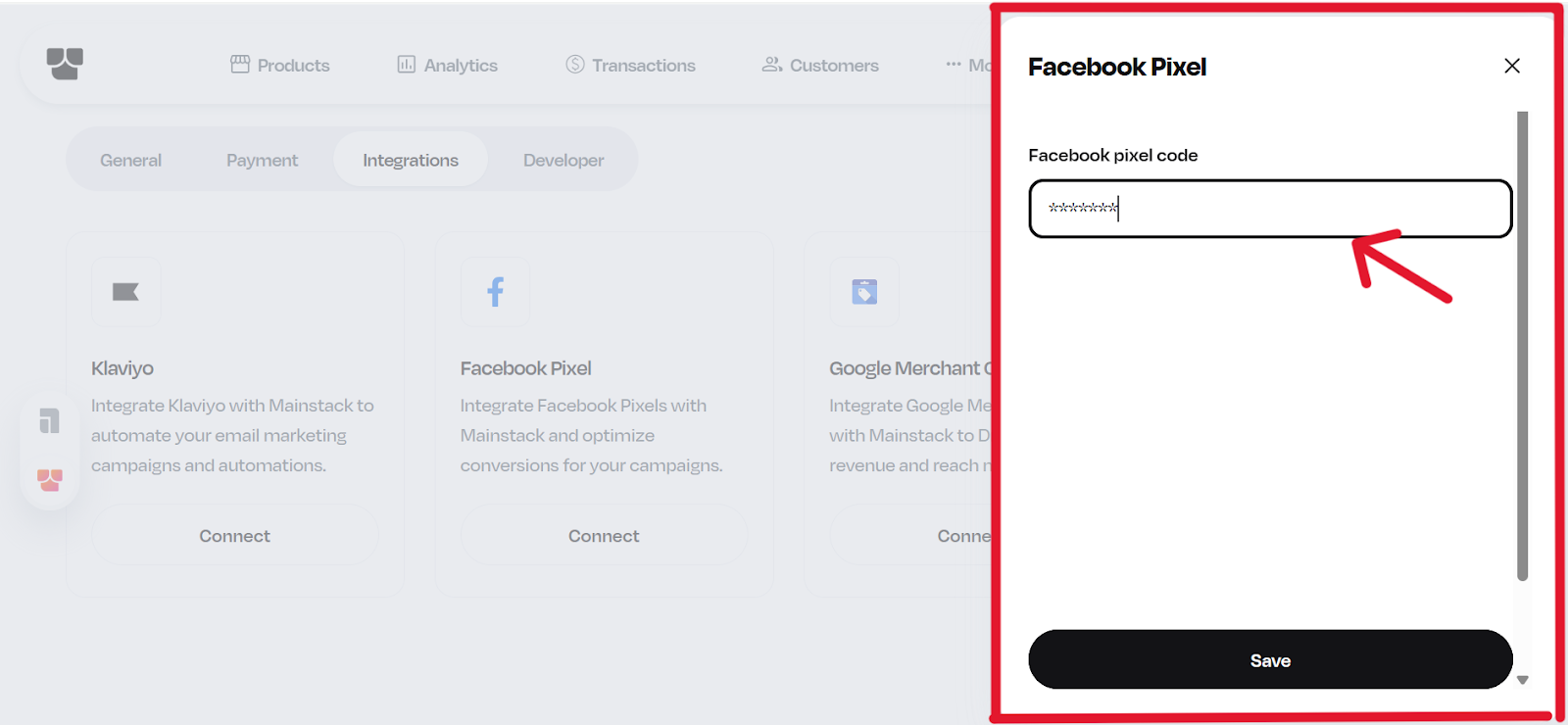
- Click Save, and your tracking goes live instantly.
Once connected, Mainstack automatically starts sending tracking events to your Meta Pixel, so you can monitor link clicks, conversions, and user interactions from your ad campaigns.
Step 3: Verify the Pixel is installed correctly
After saving your Meta pixel on Mainstack, use one or more of these methods to verify it is installed correctly:
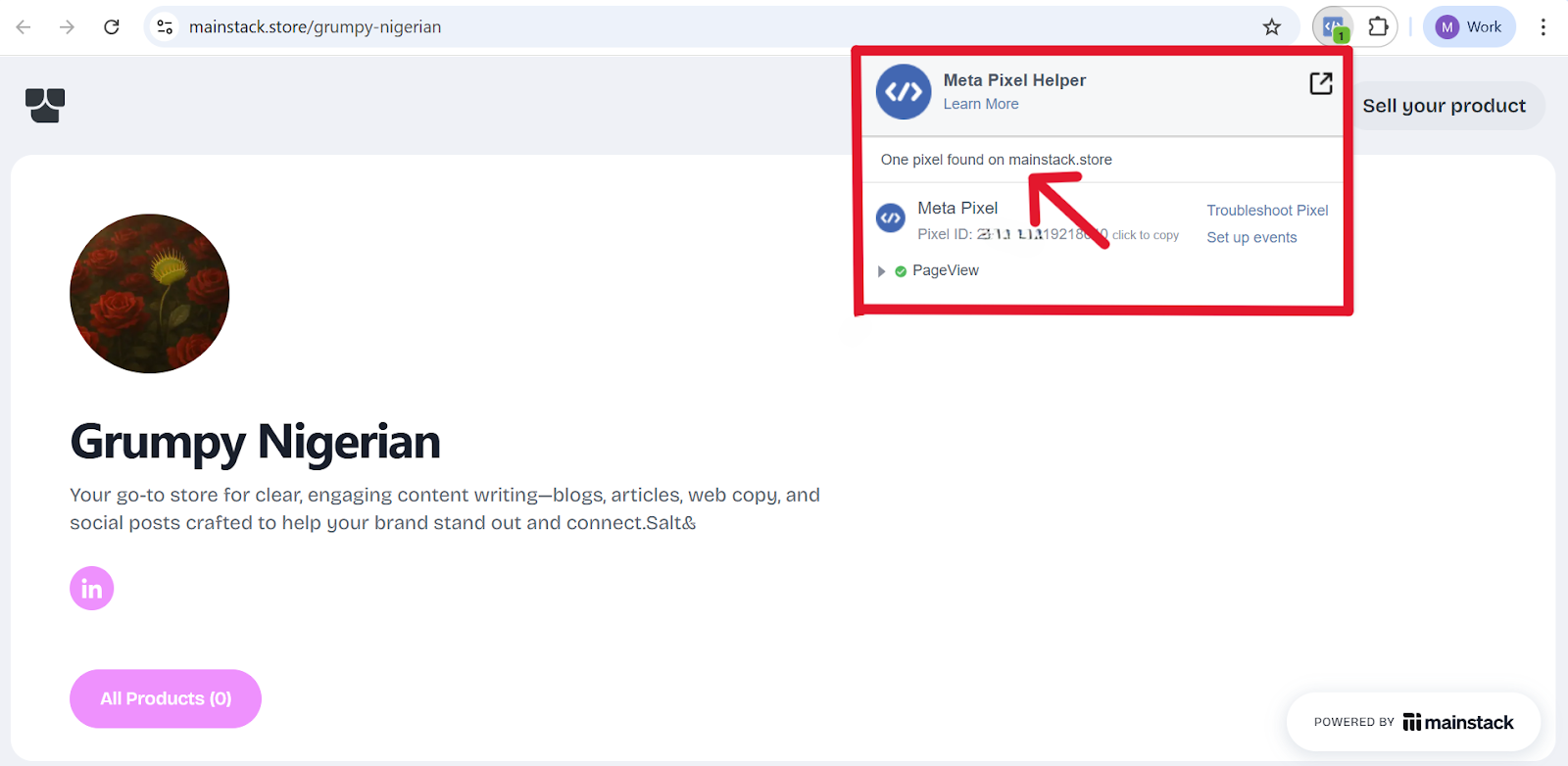
A. Meta Pixel Helper (Chrome extension)
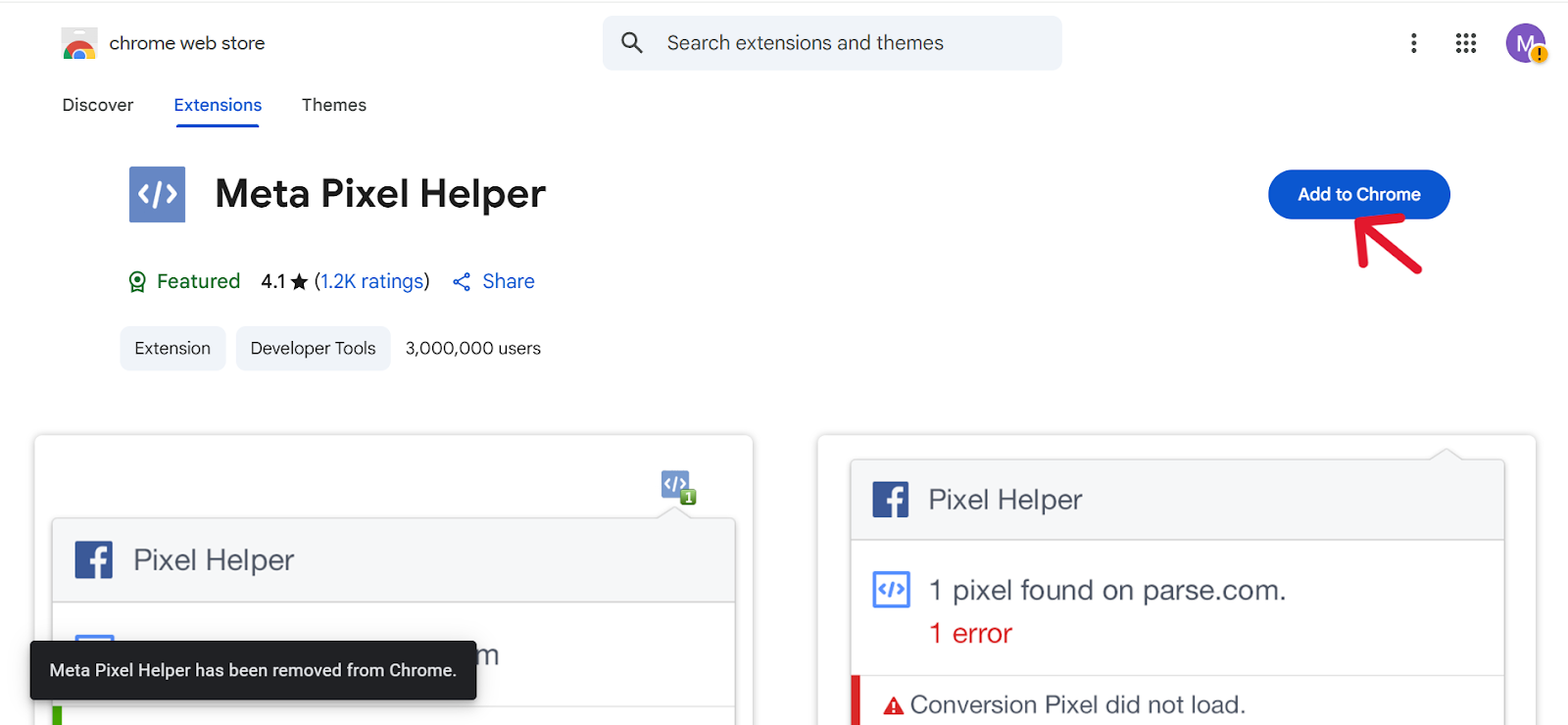
- Install the Meta Pixel Helper extension, visit your Mainstack page, and click the extension icon.
- It shows if the Pixel is detected, lists fired events, and flags common problems.
B. Real-time Events in Events Manager
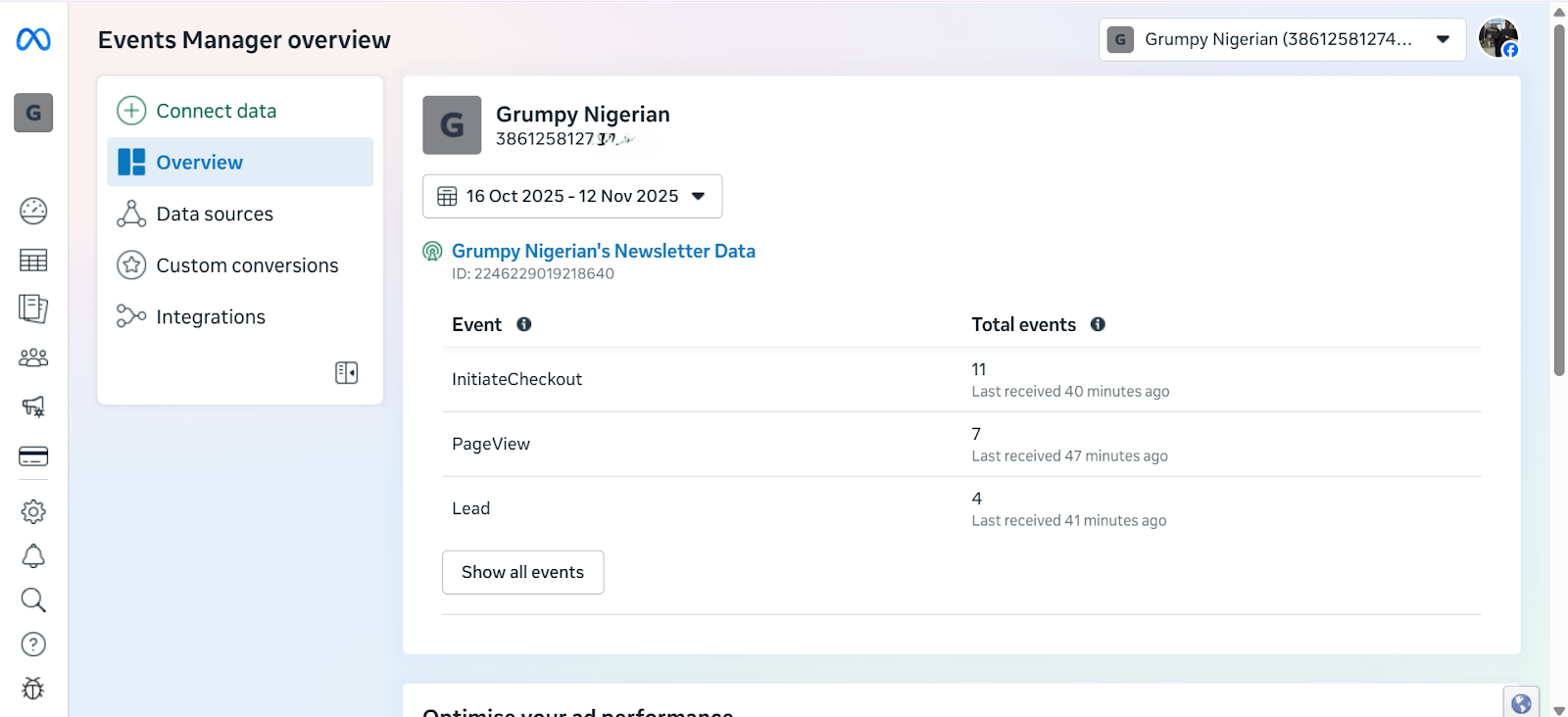
- Open Overview in Events Manager to see recent activity and Diagnostics to view warnings.
Start Tracking Smarter with Mainstack
Your growth depends on understanding what works. With Meta Pixel integration on Mainstack, you now have the tools to track, optimize, and scale your marketing effortlessly.
Log in to your Mainstack dashboard today to connect your Meta Pixel and start making data-driven marketing decisions.
We’re thrilled to announce a brand-new feature: Meta Pixel Integration is now available on Mainstack!
With this update, you can easily add Meta Pixel (formerly Facebook Pixel) to your Mainstack page to track conversions, measure ad performance, and optimize your marketing campaigns across Facebook and Instagram.
If you use Mainstack to promote your products, digital services, or affiliate offers, this new feature helps you understand your audience better and turn every click into a conversion.
What Is Meta Pixel Integration and Why It Matters
The Meta Pixel is a powerful analytics tool from Meta (formerly Facebook) that helps you understand what happens after people visit your page. When you connect it to your Mainstack Storefront or Hosted Course, you unlock a new level of insight into how your visitors engage, click, and convert.
Here’s what it helps you do:
- Track conversions that matter: See exactly how many people click your links, sign up for your course, or complete a purchase on your Mainstack page.
- Measure your ad results: Know which Facebook or Instagram ads are actually driving traffic and sales, not just impressions.
- Retarget your visitors: Reconnect with people who viewed your page but didn’t buy or sign up and bring them back with the right ad.
- Optimize ad delivery automatically: Meta’s algorithm uses your pixel data to find more people like your best customers, so your ads convert better over time.
With Meta Pixel integration on Mainstack, you can finally see the full picture without using multiple tools or complicated setups. It’s everything you need to run smarter ads, understand your audience, and grow faster, all in one place.
How to Set Up Meta Pixel Integration on Mainstack (Step-by-Step Guide)
Setting up Meta Pixel on Mainstack takes just a few minutes. Here’s how to do it:
Step 1: Find your Meta Pixel ID
- Go to Meta Business Suite or Meta Business Manager: business.facebook.com
- Open Events Manager (left sidebar → Data Sources → Pixels).
- Select the Pixel you want to use. The Pixel ID is displayed near the Pixel name (the long number).
- Copy that Pixel ID and paste it into Mainstack.
💡 Pro tip: If you don’t have a pixel yet, create one in Events Manager → Add Data Source → Web → Meta Pixel and follow the prompts. Then return here to copy the Pixel ID.
Step 2: Connect Meta Pixel inside Mainstack
- Login to your Mainstack dashboard.
- Open the Storefront or Hosted Courses page you want to track.
💡 Note: If you have multiple pages, repeat this setup for each page or connect at the account-level.
- Next, click the three-dot menu (⋮) in the top-right corner of that page’s editor.
- Select Integrations from the dropdown.
- Look for Facebook Pixel in the list and click Connect.
- Paste your Meta Pixel ID into the Pixel ID field.
- Click Save, and your tracking goes live instantly.
Once connected, Mainstack automatically starts sending tracking events to your Meta Pixel, so you can monitor link clicks, conversions, and user interactions from your ad campaigns.
Step 3: Verify the Pixel is installed correctly
After saving your Meta pixel on Mainstack, use one or more of these methods to verify it is installed correctly:
A. Meta Pixel Helper (Chrome extension)
- Install the Meta Pixel Helper extension, visit your Mainstack page, and click the extension icon.
- It shows if the Pixel is detected, lists fired events, and flags common problems.
B. Real-time Events in Events Manager
- Open Overview in Events Manager to see recent activity and Diagnostics to view warnings.
Start Tracking Smarter with Mainstack
Your growth depends on understanding what works. With Meta Pixel integration on Mainstack, you now have the tools to track, optimize, and scale your marketing effortlessly.
Log in to your Mainstack dashboard today to connect your Meta Pixel and start making data-driven marketing decisions.
https://mainstack.com







.jpg)