The Best Methods To Stop Unwanted App Notifications
We’ve all tried sitting down to concentrate on something important, only to have our focus shattered by the constant pings, dings, and alerts lighting up our phones. What starts as a small distraction quickly snowballs into frustration, pulling you away from the task at hand and making it harder to get back into the flow.
Of course, notifications aren’t inherently bad. In fact, they’re designed to be helpful, reminders for meetings, updates from your favorite apps, or alerts that actually matter. But when those notifications become too frequent, irrelevant, or downright overwhelming, they stop being useful and start becoming noise. And that noise has a real cost: your attention, your productivity, and even your peace of mind.
The good news is you don’t have to stay stuck in this cycle. Whether you’re using an Android or an iPhone, there are practical steps you can take to manage, filter, and silence unwanted notifications. This guide will walk you through the best strategies to reduce the pop-ups, minimize unnecessary distractions, and take back control of your phone, so you can finally focus on what truly matters without the constant interruptions.
Note: This guide covers the two common phone software, Android and iOS(Apple), while giving you the best measures to take for each software.
ANDROID
To disable notifications on your Android phone, there are many ways to go about it, such being:
1. Disabling all Notifications
- Go to Settings(Find the Gear/Machine icon and tap it)
- Then click on the Apps(Applications)
- Then select the notifications option
- Finally, toggle off “Allow notifications” to cut off all alerts completely
2. Disabling All Notifications from a Particular App
To turn off the notifications from a particular application:
- Long-press the app.
- Tap on the notification section
- Then toggle off allow notifications
OR
- You can access the settings faster by long-pressing the notification itself and disabling it directly.
3. Use Do Not Disturb Mode
The Do Not Disturb (DND) mode, when selected, allows the user to engage in any activity on their phone without disturbance from third parties. To access it:
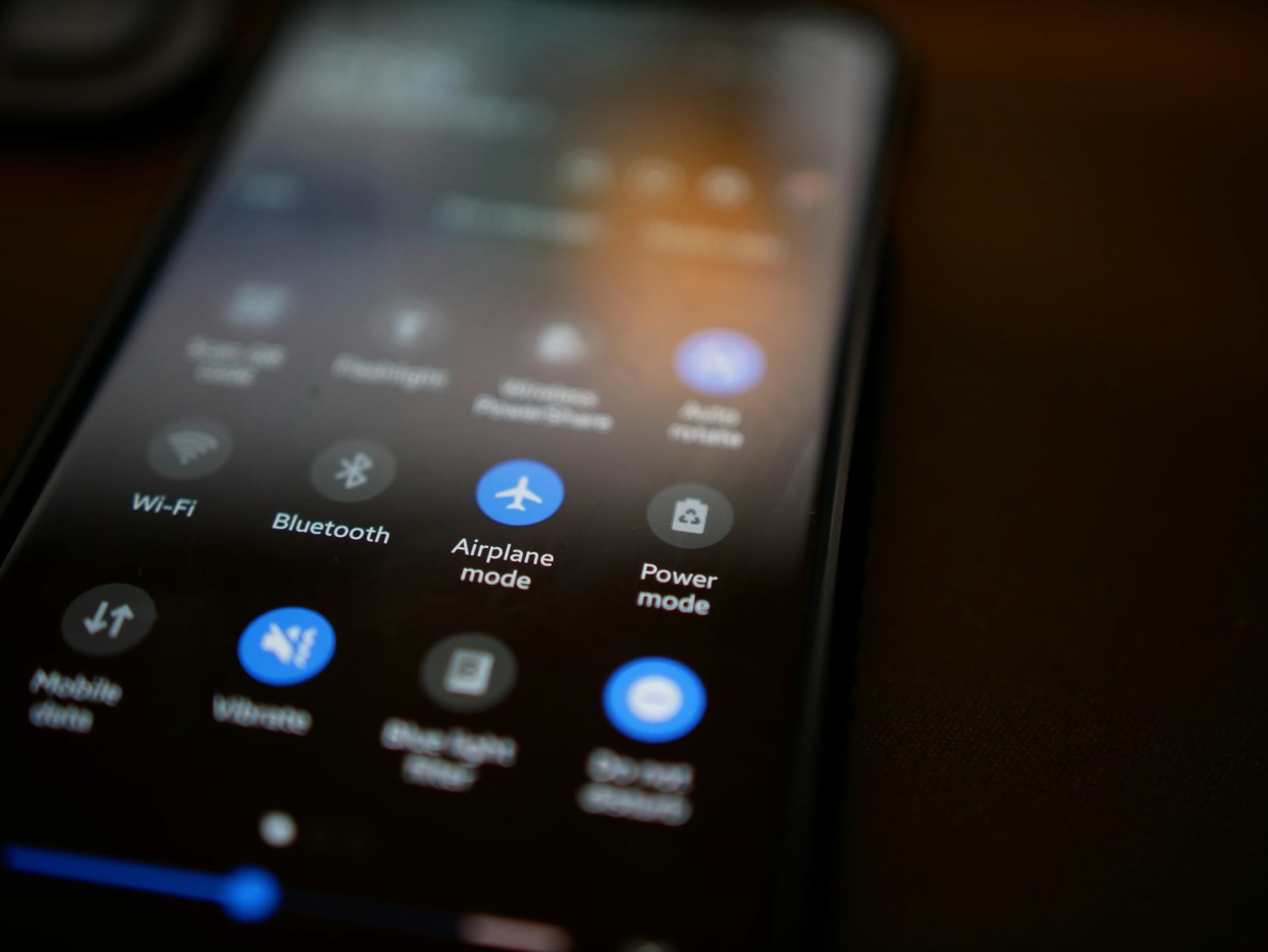
Swipe down on your phone to access the toolbar and tap the DND icon., There, it’s all done.

iOS(Apple)
These are the methods you can use to disable notifications on your iPhone:
1. Disabling All Notifications from a Particular App
- Open the Settings app
- Scroll down and tap Notifications
- Tap the application you want to turn off
- Then toggle Allow Notifications to turn it off
2. Use Focus Mode to Silence Notifications
The Focus Mode allows the user to turn off notifications for a set amount of time, which could be for an hour or a whole day, depending on the user’s choice. To select it:
- Open Settings > Focus
- Choose Do Not Disturb or tap the + to create a new mode (like “Work” or “Reading”)
- Decide which people and apps can still reach you
- Schedule it for specific times or enable it manually
Notifications may seem like a minor issue, but research shows they significantly increase stress and disrupt focus. Silencing them, especially during deep work or rest, can seriously improve your well-being. Even going offline for just one day helps people to maintain better focus. Now you know what to do when you either need to study, lock-in, or just shut out the noise.
Sources
How to Disable Notifications from Any App in Android
How to Stop Unwanted iPhone Notifications